
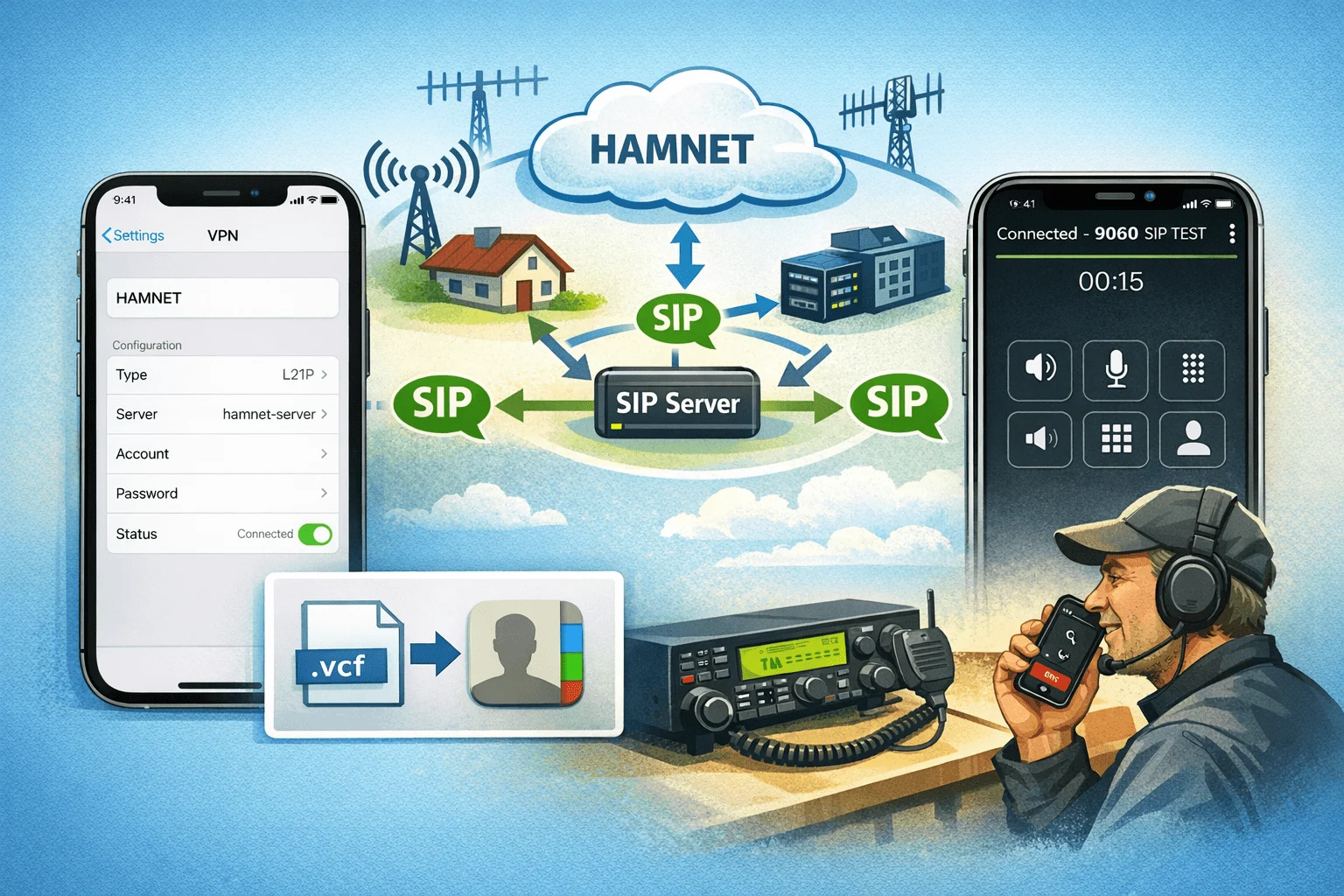
You want to make calls with your iPhone via HAMSIP? Here we will show you how to set up everything – from the VPN connection to the Hamnet to the finished telephony with a SIP app. These instructions are written in such a way that they work even if you have no experience with VPN or VoIP.
This is a follow-up to “Setting up HAMSIP telephony on the PC – step-by-step”.
1. Get access data
Before you get started, you need personal access data for the Hamnet:
- Go to www.hamweb.at.
- Request your Hamnet/VPN access there.
- You will then receive an email with:
- VPN server (e.g.
vpn.hamweb.at) - Username and password for the VPN
- (later also) SIP username, password and server address for HAMSIP
- VPN server (e.g.
Tip: Save this email – you’ll need it right away.
2. Set up VPN on iPhone (L2TP)
In order for your iPhone to get into Hamnet, you must first set up a VPN. Here’s how it works:
- Open Settings → General → VPN & device management → VPN.
- Tap Add VPN configuration.
- For Type select L2TP.
- Enter:
- Description: e.g. B. “Hamnet VPN”
- Server: from your email (e.g.
vpn.hamweb.at) - Account: your VPN username
- Password: your VPN password
- Secret key (Shared Secret): as in the email
- Send all data: activate
- Tap Done. at the top
- Slide the switch under VPN to Connect.
If everything is correct, you will see “VPN” at the top of your iPhone. You are now in the Hamnet.
3. Install SIP app (Zoiper)
So that you can make calls via HAMSIP, you need a SIP app. We recommend Zoiper (free in the App Store):
- Download Zoiper from the App Store.
- Open Zoiper → below Settings → Accounts → Add Account.
- Select SIP.
- Enter the data from your email:
- Username / AuthName: your SIP username
- Password: your SIP password
- Server / Domain / Host: SIP server address (e.g.
44.143.70.4) - Transport: UDP select
- Save. Zoiper reports “Registered” (green).
Now your iPhone is registered in the HAMSIP network via Hamnet.
4. Load contacts into iPhone (optional)
In the GitHub repository https://github.com/oehamradiorepo/hamsip there is a script that automatically creates a phone book.
If you already have a CSV or VCF:
- Send the
.vcffile to your iPhone via email. - Open the email, tap on the attachment and select “Save to Contacts”.
- The contacts will then appear in the Zoiper app as soon as you select them from the iPhone address book.
So you immediately have all the call signs and numbers in your cell phone.
5. Testing
- Turn on VPN (“VPN” visible at the top).
- Open Zoiper and check whether the account is Registered (green).
- Choose test number: There is usually an announcement or echo number (e.g.
9060).
If you hear something there, everything is working.
6. Understanding mistakes
- Not registered: VPN off or incorrect data.
- 603 Decline: Participant declines or DND active.
- 604 Does Not Exist Anywhere: Number does not exist.
- 486 Busy Here: Participant busy.
7. Summary
- Set up VPN via L2TP (with data from hamweb.at).
- Install Zoiper and enter SIP data.
- Import contacts optionally.
- Call the number – done!
With these instructions you can set up your iPhone as a HAMSIP phone without any prior knowledge.
