
This page has been automatically translated. Errors may occur.
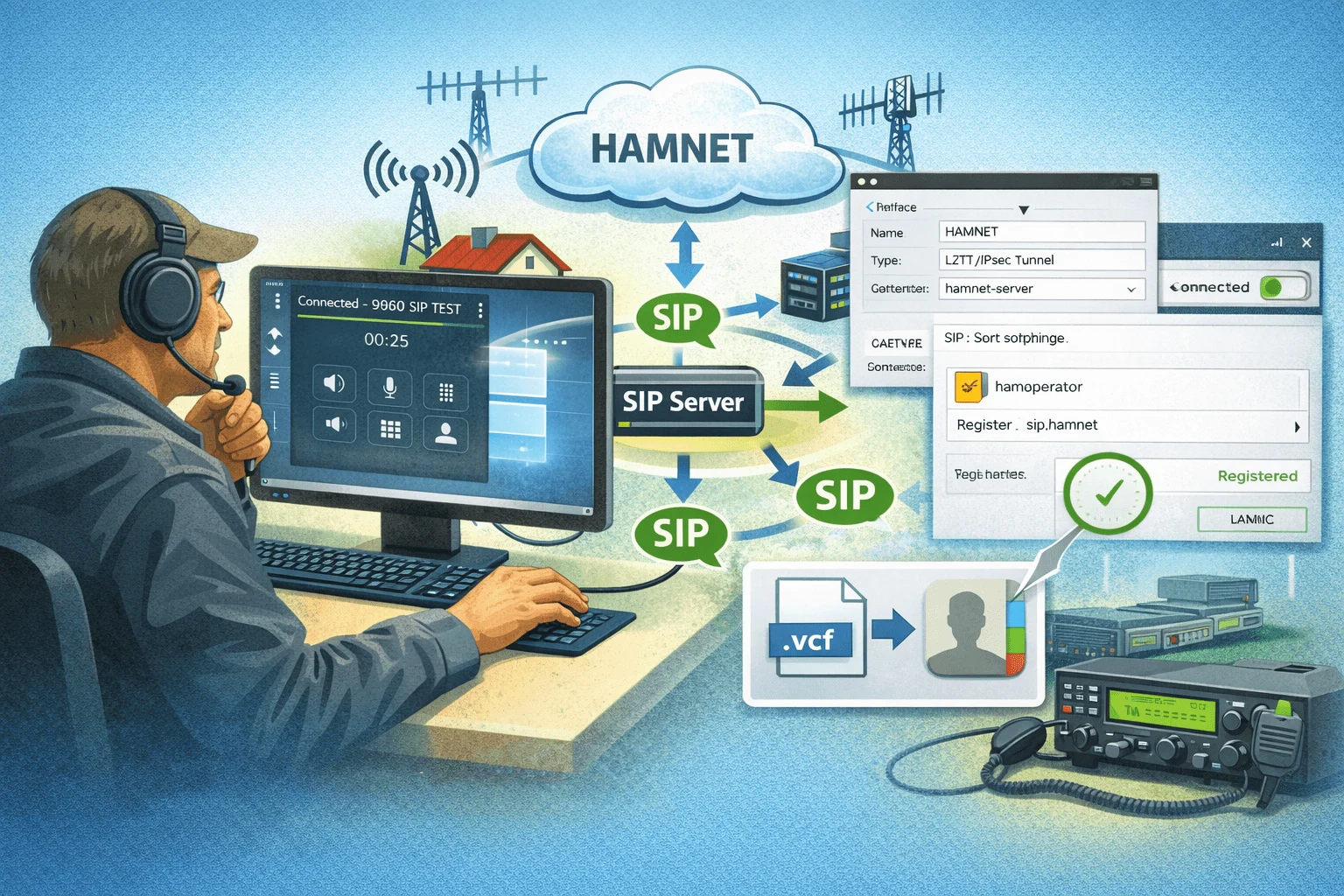
This is a follow-up to “HAMSIP Telephony: Our New Toy” and describes how to set up HAMSIP completely on a Windows PC, without a SIP phone and additional network hardware.
1. Request Hamnet access
- Go to www.hamweb.at and request Hamnet access.
- You will receive the necessary access data (Thanks to Matthias OE5MUC!):
- VPN server
- Username & Password
2. Set up VPN on Windows
- Settings → Network & Internet → VPN → Add VPN connection
- Connection type: L2TP/IPSec
- Pre-shared key:
securevpn - Enter username/password
- Connect to VPN
- Test call http://44.143.70.8/
3. Request SIP user
- Go to http://44.143.70.8/ and request a SIP account.
- You will receive the necessary access data
- Username & Password
4. Install and set up MicroSIP
- Download MicroSIP from microsip.org
- Set up account:
- SIP server:
- User name:
- Password:
- SIP server:
- at 44.143.70.8/voip.php you can see all the stations that are online
- Using DTMF Tool you can “calculate” the telephone number – the telephone number is the same as the call sign.
- Make a test call
- ECHO: 0032234263
- TIME: 0081436132

6. Import contacts (optional)
Download 6.1 Repository
- Download repository from GitHub
- Download Git Repository
- for experienced Git users
- git clone https://github.com/oehamradiorepo/hamsip.git
- Change to the repository directory:
cd hamsit
- for users without Git knowledge
- Go to https://github.com/oehamradiorepo/hamsip
- Click on Code → Download ZIP
- Save the ZIP file on your PC
- Extract the ZIP file into a folder, e.g.
C:hamsip - Open the folder to access all files and the PowerShell script
- for experienced Git users
6.2 Import contacts
- SNOM-HAMSIP phone book:
http://44.143.70.8/phonebook/snom.php - Run PowerShell script (see repository
powershell/update_hamsip_contacts.ps1) - Close MicroSIP before the script
- Start MicroSIP after execution → Contacts appear automatically
6.3 Automatically update contacts
- Windows Task Scheduler → Create task
- Trigger: daily or every X minutes
- Action: Run PowerShell script
- Keep MicroSIP closed during the update
