
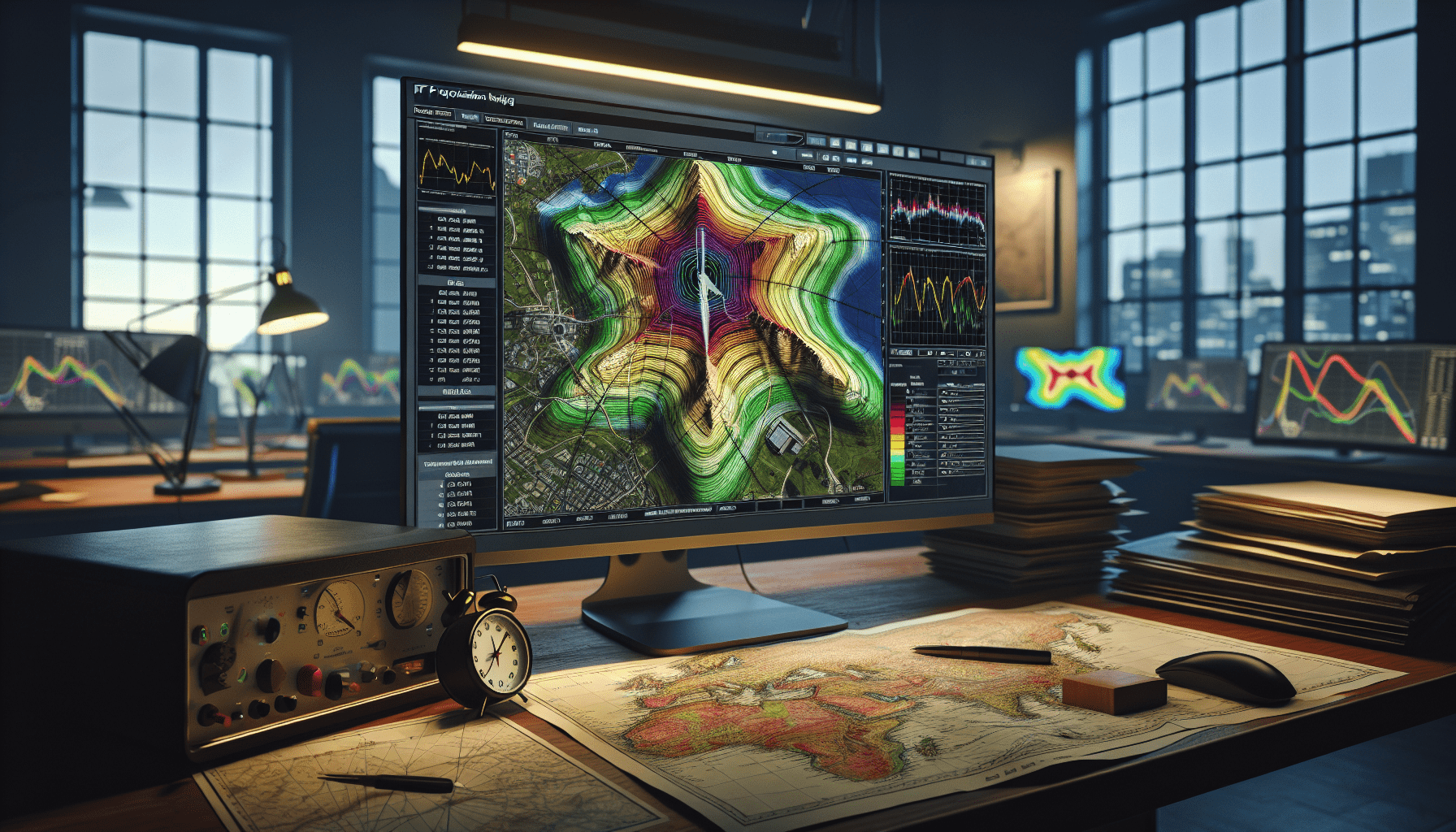
Do you want to know how far your radio signal actually reaches from your location? Whether the new repeater site on the local mountain provides optimal coverage? Or which frequency and antenna height are best suited for a point-to-point connection? Then RF propagation maps are exactly what you need. Instead of using expensive commercial software or relying purely on experience, you can create realistic simulations with free or affordable tools like SPLAT!, Radio Mobile, HeyWhatsThat, and CloudRF – right on your own computer or in your browser.
These programs use digital elevation models of the Earth’s surface as well as propagation models based on decades of research. They take into account terrain elevations, vegetation, built-up areas, and atmospheric effects. The result: color-coded maps that show at a glance where your signal arrives strong and where mountains or valleys block reception. In Austria, with its alpine regions and diverse topographies, this is particularly exciting – and often surprising.
In this article, we’ll show you how to set up these tools, which data sources you need, and how to interpret the results. Whether you’re planning VHF repeaters, simulating HF propagation, or simply curious: after reading this, you’ll be able to create your own RF propagation maps and make informed decisions.
RF Propagation Basics: What the Simulation Takes Into Account
Before we dive into the software, it’s important to understand what an RF propagation simulation actually does. Essentially, it’s about predicting how electromagnetic waves propagate over a certain distance. Several factors play a role:
- Terrain profile: Mountains, valleys, hills – every elevation affects propagation. Line-of-sight is often the most important factor in the VHF/UHF range.
- Frequency: Lower frequencies (e.g., 2 m at 145 MHz) diffract better around obstacles than higher ones (e.g., 70 cm at 430 MHz or even 23 cm at 1296 MHz).
- Transmit power and antenna gain: More power and higher gain mean greater range – but there are also limits imposed by physical laws.
- Antenna height: Even a few meters difference can drastically improve reception, as more obstacles are overcome.
- Built-up areas and vegetation: Forests significantly attenuate signals (up to 10–15 dB at UHF), as does dense urban development.
- Atmospheric conditions: Temperature inversions, ducting effects, and rain attenuation – especially relevant at higher frequencies.
The most common propagation models used in the tools presented are the Irregular Terrain Model (ITM) (also known as Longley-Rice), ITWOM (Irregular Terrain with Obstructions Model), and simplified free-space models. ITM is particularly suitable for frequencies from 20 MHz to 20 GHz and distances from 1 to 2000 km – perfect for most amateur radio applications.
SPLAT!: The Classic for Linux Enthusiasts
SPLAT! (Signal Propagation, Loss, And Terrain analysis tool) is an open-source command-line tool that has existed for over 20 years and continues to be developed. It runs natively on Linux and macOS, but can also be used on Windows with WSL (Windows Subsystem for Linux). SPLAT! is particularly popular among radio amateurs who value control, reproducibility, and detailed analysis.
Installation and First Steps
Installation on Ubuntu or Debian is very simple:
sudo apt-get update
sudo apt-get install splat
Alternatively, you can download and compile the latest version directly from developer KD2BD. The current version 1.4.2 (as of 2026) brings improved ITWOM support and faster calculations.
SPLAT! requires digital elevation data in SDF format (SPLAT Data Format). These are based on SRTM data (Shuttle Radar Topography Mission) with 1 or 3 arc-second resolution. For Austria, this means approximately 30 m or 90 m resolution. You can obtain the data free of charge from NASA SRTM or already converted from various amateur radio websites. You need the tiles that cover your area of interest – for example, N47E013 to N48E016 for much of Austria.
Creating a Simple Propagation Map
Suppose you operate a 2 m repeater on Gaisberg near Salzburg (1287 m above sea level, position approximately 47.8° N, 13.1° E). You want to know how far the signal reaches with 50 watts transmit power and a 6 dBi antenna at 20 m height above ground. First, you create a QTH file (location file) named gaisberg.qth:
Gaisberg-Repeater
47.8
13.1
1307  (Height above sea level in meters: 1287 + 20)
Then you run SPLAT! with the following parameters:
splat -t gaisberg.qth -f 145.775 -erp 200 -R 150 -o gaisberg_145Here, -f 145.775 means the frequency in MHz, -erp 200 the effective radiated power in watts (50 W × 6 dBi ≈ 200 W ERP), -R 150 the radius in kilometers, and -o the output file name. SPLAT! now calculates the terrain profile and generates several files, including a PNG map that displays the received field strength in color-coded form.
The result typically shows you green areas with strong signal, yellow/orange for medium field strengths, and red/white for weak or no coverage. In the Alps, you often see dramatic shadows behind mountain ridges – exactly where you would receive nothing in practical tests.
Advanced Features
SPLAT! can do far more than simple coverage maps:
- Path loss analysis: Detailed point-to-point calculations with elevation profiles and Fresnel zone representation.
- Link budget calculations: Simulates connection quality between two locations taking into account antenna gains, losses, and obstacles.
- Cartographic overlays: Combine SPLAT! output with street maps or topographic maps using tools like
gnuplotorImageMagick. - Custom clutter data: Integrate information about vegetation and built-up areas for more precise urban simulations.
The command-line interface may seem intimidating at first, but offers maximum flexibility. You can create scripts that automatically simulate multiple locations or frequencies – ideal for repeater planning or network coverage analysis.
Radio Mobile: The Graphical Alternative for Windows
Radio Mobile (also known as Radio Mobile Deluxe) has been the tool of choice for many years for Windows users who prefer a graphical interface. Developed by Canadian radio amateur Roger Coudé VE2DBE, it also uses SRTM elevation data and the ITM model, but offers an intuitive GUI with drag-and-drop, map visualization, and extensive customization options.
Installation and Setup
Radio Mobile is available as a free program for Windows (also runs under Wine on Linux, but with limitations). You can download the current version 11.9.5 (as of 2026) from the official website. Installation is straightforward, but you must then download the required elevation data.
Radio Mobile uses SRTM3 data (3 arc seconds, approximately 90 m resolution) or optionally higher-resolution SRTM1 data (30 m). For Austria, you need tiles N47E013 to N48E016. These can be downloaded directly in Radio Mobile: Select File → Map properties → Extract and mark the desired area. The program automatically downloads the data from NASA servers.
Simulating Your First Network
Radio Mobile works with networks: You define multiple locations (units) and their parameters, then the program simulates the connections between them. Here’s an example for planning a UHF repeater:
- Create network: File → Networks properties → New. Give the network a name, e.g., “OE2XYZ Repeater”.
- Set parameters: Set the frequency to 438.725 MHz, polarization to vertical, and choose the ITM model with “Continental Temperate” as the environment (suitable for Central Europe).
- Add locations: File → Unit properties → New. Add the repeater as “Base Station” (e.g., Untersberg location near Salzburg, 1853 m above sea level, antenna 10 m above ground, 50 W transmit power, 6 dBd gain). Then add several “Mobile Units” to simulate typical user locations (e.g., Salzburg city, 420 m above sea level, handheld radio with 5 W, 0 dBd antenna).
- Generate coverage map: Select the repeater and click on Tools → Radio coverage. Radio Mobile now calculates the coverage and displays a color-coded map.
By default, the map shows the received field strength in dBm or dBµV. You can adjust the color scale, define thresholds (e.g., “at least -100 dBm for reliable reception”), and overlay elevation contours. The result can be exported as PNG or transferred directly to Google Earth.
Link Analysis and Animations
A special feature of Radio Mobile is the panorama view: You can see from the perspective of a station which other stations are visible – including elevation profile and Fresnel zones. This is extremely helpful for understanding why a connection works or fails.
You can also create animated simulations, for example for mobile stations along a route. Radio Mobile calculates the signal strength along the route and shows where connection dropouts are to be expected. An invaluable tool for Field Day planning or SOTA activations (Summits On The Air).
The graphical interface makes Radio Mobile particularly beginner-friendly, but experienced users also appreciate the ability to integrate external data (e.g., clutter data for cities or forest density). The community around Radio Mobile is active; in the Radio Mobile Forum you’ll find numerous tutorials, sample projects, and support.
HeyWhatsThat: Fast Line-of-Sight Analysis in the Browser
Sometimes you don’t need a complete RF simulation, just a quick answer to the question: “Which mountains can I see from here?” Or: “Is line-of-sight to this location possible?” This is exactly where HeyWhatsThat comes in – a browser-based tool that creates line-of-sight maps in seconds.
How Does It Work?
Visit heywhatsthat.com and click on “New panorama”. Place a marker at your location (e.g., on a summit in the Ötztal Alps) and enter the height above ground (e.g., 10 m for an antenna installation). The tool uses high-resolution SRTM data and calculates a 360° panorama view showing which peaks, cities, or landmarks are visible at what distance.
Particularly interesting for RF propagation is the path profiler function: You can set a second point, and HeyWhatsThat shows you the elevation profile between both points – including information on whether line-of-sight exists or if obstacles are in the way. This isn’t a complete ITM simulation, but it’s an extremely fast initial assessment.
Integration with Other Tools
HeyWhatsThat offers an API that can be linked with other tools. In particular, SOTAmaps.org (for Summits On The Air) uses HeyWhatsThat to visualize line-of-sight connections between summits. You can also export the generated panoramas as KML files and import them into Google Earth.
Limitations: HeyWhatsThat does not consider frequency, transmit power, or antenna patterns – it’s purely geometric. But for an initial feasibility check, it’s unbeatable in speed and cost.
CloudRF: Modern Cloud-Based Simulation
CloudRF is a commercial platform (with a limited free version) that moves RF simulations to the cloud. This means: You don’t need a local installation, no elevation data to download – everything runs in the browser. CloudRF uses high-resolution global datasets (up to 10 m in urban areas) and offers a modern, interactive interface.
Features and Costs
The free version (“Lite”) allows you to perform a few simulations per day – sufficient for occasional experiments or individual projects. For serious repeater planning or commercial applications, CloudRF offers paid plans starting at approximately 20 EUR/month (as of 2026) with unlimited calculations, higher resolutions, and API access.
CloudRF supports multiple propagation models, including ITM, ITWOM, and Hata (for urban environments). You can simulate various scenarios: point-to-point, point-to-multipoint, area coverage, mesh networks, and more. The interface is intuitive: You click on the map, adjust parameters (frequency, power, antenna height, terrain classification), and start the calculation. After a few seconds, the coverage map appears as a colored overlay.
Practical Example: Repeater Network in Styria
Suppose you’re planning a VHF repeater network in Styria with locations on Schöckl (1445 m), Hochlantsch (1720 m), and Speikkogel (1993 m). With CloudRF you can:
- Simulate each location individually and overlay the coverage maps to identify gaps.
- Check the point-to-point connections between the repeaters (for backbone links).
- Vary parameters (e.g., change antenna height or frequency) and see the effects immediately.
- Export the results as KML/KMZ and present them in Google Earth – perfect for board meetings or permit applications.
A special feature is the 3D visualization: CloudRF can display coverage in a 3D view, allowing you to literally “fly into” the simulation. This illustrates spatial relationships far better than a flat map.
Clutter and Detailed Land Use
CloudRF integrates land use data (clutter) that distinguishes between water, forest, grassland, urban development, etc. Typical attenuation values are assumed for each category. In Austria’s dense forests, this can make the difference between a realistic and an overly optimistic simulation. The paid plans also offer the ability to upload your own clutter data or consider specific building heights (relevant in cities like Vienna or Graz).
Tool Comparison: Which One Suits You?
Each tool has its strengths. Here’s an overview to help you choose:
| Tool | Platform | User-Friendliness | Cost | Best Application |
|---|---|---|---|---|
| SPLAT! | Linux/macOS/WSL | Medium (CLI) | Free (Open Source) | Detailed analysis, scripts, maximum control |
| Radio Mobile | Windows | High (GUI) | Free | Network planning, animations, beginner-friendly |
| HeyWhatsThat | Web browser | Very high | Free | Quick line-of-sight checks, SOTA planning |
| CloudRF | Web browser | Very high | Free (limited) / from 20 EUR/month | Modern simulations, 3D visualization, commercial projects |
Our recommendation: If you’re new, start with Radio Mobile or CloudRF (free version). Both offer a graphical interface and immediate visual feedback. For more in-depth analysis or if you want to automatically calculate many scenarios, SPLAT! is unbeatable. Use HeyWhatsThat additionally for quick line-of-sight checks.
Data Sources: Elevation Models, Clutter, and More
The quality of your simulation depends on the underlying data. Here are the most important sources:
Digital Elevation Models (DEM)
- SRTM (Shuttle Radar Topography Mission): Global coverage, 1 arc second (approximately 30 m) or 3 arc seconds (approximately 90 m) resolution. Free from USGS EarthExplorer or directly integrated in SPLAT!/Radio Mobile.
- EU-DEM: Elevation model for Europe with 25 m resolution, created by Copernicus. Higher accuracy than SRTM in some regions, but larger files. Downloadable from Copernicus Land Monitoring.
- LiDAR data: In Austria, the BEV (Federal Office of Metrology and Surveying) offers high-resolution LiDAR data (up to 1 m resolution). Cost-based, but unbeatable in precision for professional projects.
Clutter Data (Land Use)
For realistic urban or forested scenarios, you need information about ground cover. The most important sources:
- CORINE Land Cover: Europe-wide land use data at 100 m resolution, freely available from the Copernicus programme. Distinguishes between forest, farmland, urban areas, water and more.
- OpenStreetMap: Building data and land use can be extracted from OSM and used as clutter data in some tools (e.g. CloudRF).
- Own measurements: For particularly accurate simulations, you can manually survey local features (tree height, building density) and enter them into the software.
Conclusion
Creating RF propagation maps yourself is easier today than ever – whether with the free SPLAT! for Linux enthusiasts, the visually appealing Radio Mobile for Windows users, or the web-based CloudRF for quick analyses. For radio amateurs in Austria, these tools are particularly useful: the alpine topography makes precise propagation predictions essential, whether planning a new repeater site, optimising your own antenna, or preparing for field days and SOTA activations.
Our tip: Start with CloudRF for quick initial simulations, then move to Radio Mobile for more detailed analyses, and use SPLAT! when you need maximum control over parameters. And don’t forget: the best simulation is no substitute for a real test – but it shows you where it’s worth putting up the antenna!
Transparency Notice
This article was researched and written with the assistance of AI (Claude, Anthropic). The editorial team has reviewed and edited all content. Despite careful review, occasional inaccuracies may occur — we welcome corrections via email to [email protected].
